How to define a global variable in Python
Define Python global variables. This guide covers methods, tips, real-world uses, and debugging common errors.
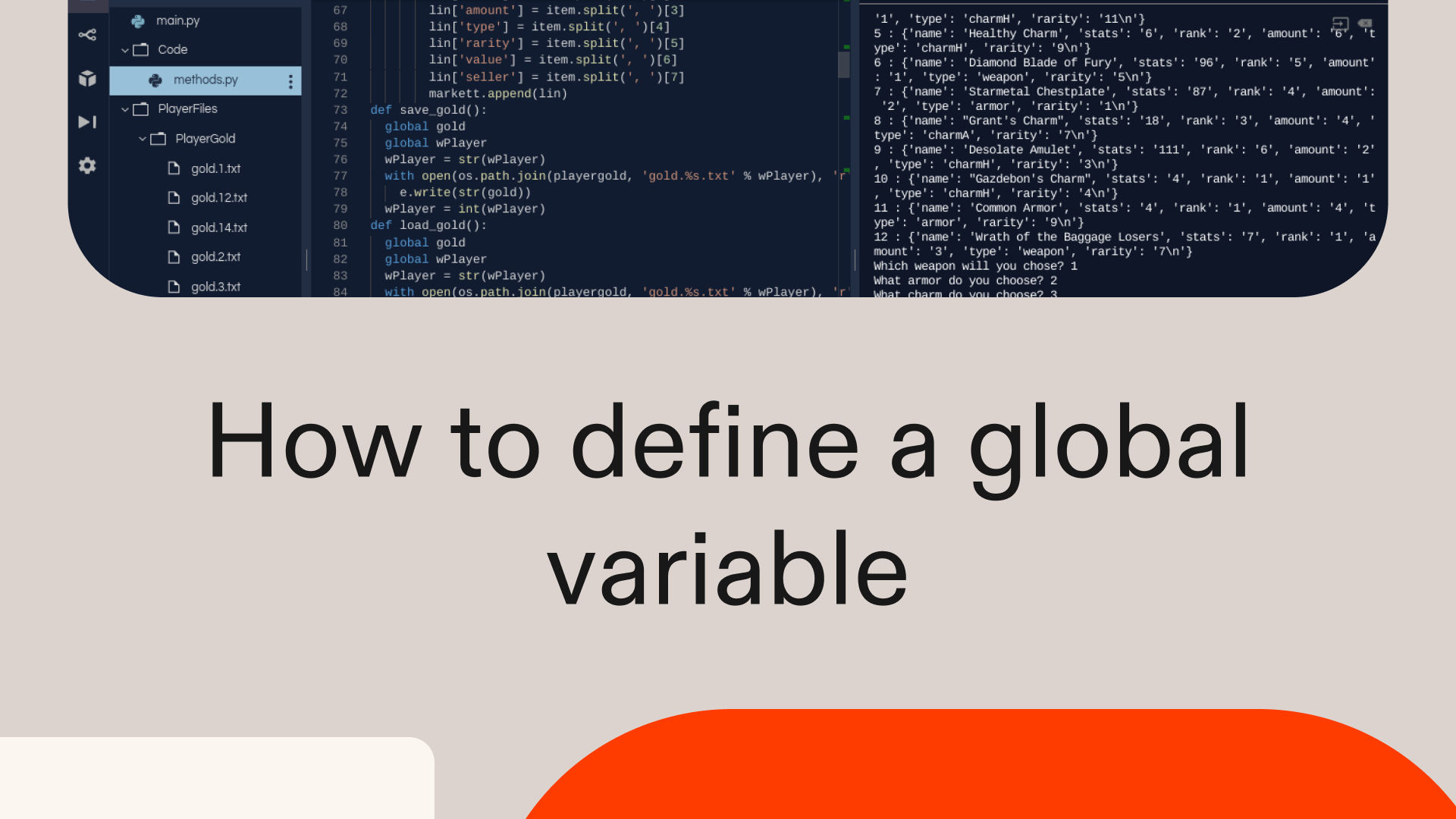

Global variables in Python let you share data across different parts of a program. You declare them outside functions or use the global keyword to modify them from within a local scope.
In this article, you'll explore techniques for their effective use. We'll also provide real-world application examples, practical tips, and debugging advice to help you write cleaner, more maintainable code.
Basic global variable definition
counter = 0

def increment():
    global counter
    counter += 1
    return counter

print(increment())
print(counter)--OUTPUT--1
1
In this snippet, the counter variable is defined in the global scope, making it accessible throughout the program. For the increment() function to modify it, you must explicitly declare your intent using the global counter statement. Without this line, Python would create a new, local variable named counter that would exist only within the function.
The global keyword tells the function to alter the original variable in the global scope. This is why the change to counter persists after the function runs, allowing the final print() call to access its updated value of 1.
Common techniques for global variable management
While using the global keyword works for simple cases, more structured approaches are often better for keeping your code clean as projects grow.
Using the global keyword in functions
x = 10

def modify_global():
    global x
    x = 20
    print(f"Inside function: x = {x}")

print(f"Before function: x = {x}")
modify_global()
print(f"After function: x = {x}")--OUTPUT--Before function: x = 10
Inside function: x = 20
After function: x = 20
The global keyword is your tool for modifying a global variable from inside a function. In this example, global x tells the modify_global() function that you're referring to the x defined outside of it. Without this statement, Python would create a new local variable, and the global one would remain unchanged.
- The output shows
xis initially10. - Inside the function, its value is updated to
20. - After the function runs,
xremains20, confirming the global variable was successfully modified.
Using separate modules for global variables
# Save this as config.py
DATABASE_URL = "postgres://user:pass@localhost/db"
DEBUG = True
MAX_CONNECTIONS = 100

# In main.py
import config

print(f"Debug mode: {config.DEBUG}")
config.DEBUG = False
print(f"Debug mode updated: {config.DEBUG}")--OUTPUT--Debug mode: True
Debug mode updated: False
A cleaner way to manage global state is to centralize variables in a dedicated module, like config.py. When you import config in another file, Python creates a single instance of that module. This makes its variables accessible across your entire application without needing the global keyword.
- You can read a value with dot notation, such as
config.DEBUG. - Modifying it is just as simple:
config.DEBUG = False.
This approach keeps your configuration organized in one place, making your project easier to maintain and scale as it grows.
Class variables as pseudo-globals
class AppConfig:
    VERSION = "1.0.0"
    API_KEY = "abc123"
    TIMEOUT = 30

print(f"App version: {AppConfig.VERSION}")
AppConfig.VERSION = "1.0.1"
print(f"Updated version: {AppConfig.VERSION}")--OUTPUT--App version: 1.0.0
Updated version: 1.0.1
You can also use a class to act as a container for global-like settings. This approach neatly bundles related variables, such as configuration details, into a single, organized namespace. To implement this pattern effectively, you'll need to understand creating classes in Python.
- Variables like
VERSIONandAPI_KEYare defined directly within theAppConfigclass. - You can access and modify these values from anywhere in your code using dot notation, like
AppConfig.VERSION.
This method provides a structured alternative to loose global variables, making your code cleaner and easier to manage without needing the global keyword.
Advanced global variable patterns
As your project grows, you'll find that advanced patterns using dictionaries, the Singleton pattern, or contextvars offer more robust control over shared state.
Using a global configuration dictionary
CONFIG = {
    "theme": "dark",
    "language": "en",
    "notifications": True
}

def toggle_notifications():
    CONFIG["notifications"] = not CONFIG["notifications"]
    return CONFIG["notifications"]

print(f"Notifications: {CONFIG['notifications']}")
print(f"After toggle: {toggle_notifications()}")--OUTPUT--Notifications: True
After toggle: False
A global dictionary like CONFIG offers a flexible way to manage related settings. Since dictionaries are mutable, you can modify their contents from within a function without using the global keyword. The toggle_notifications() function directly changes the value of CONFIG['notifications'] because you're altering the dictionary's internal state, not reassigning the CONFIG variable itself.
- The function accesses a key in the
CONFIGdictionary. - It updates the value associated with that key.
- The change is reflected globally because the dictionary object itself was modified.
Managing globals with a Singleton pattern
class GlobalState:
    _instance = None

    def __new__(cls):
        if cls._instance is None:
            cls._instance = super().__new__(cls)
            cls._instance.counter = 0
        return cls._instance

state1 = GlobalState()
state2 = GlobalState()
state1.counter += 1
print(f"State1 counter: {state1.counter}")
print(f"State2 counter: {state2.counter}")--OUTPUT--State1 counter: 1
State2 counter: 1
The Singleton pattern ensures a class has only one instance across your entire application, creating a single, shared object for managing state. It works by overriding the __new__ method, which controls object creation. This method creates an instance just once and returns that same instance on all future calls.
- Because of this, both
state1andstate2point to the exact sameGlobalStateobject. - When you modify
state1.counter, the change is reflected instate2.countersince they are simply two names for one instance.
Thread-safe globals with contextvars
import contextvars

user_id = contextvars.ContextVar('user_id', default=None)

def set_user(id):
    user_id.set(id)

def get_user_info():
    return f"Processing data for user: {user_id.get()}"

set_user(42)
print(get_user_info())--OUTPUT--Processing data for user: 42
The contextvars module provides a way to manage state safely in concurrent code, like in web applications or asynchronous programs. It creates variables that are specific to their execution context—think of it as giving each thread its own private copy of a global variable. This prevents different tasks from accidentally overwriting each other's data.
- A context variable is created using
contextvars.ContextVar(), as seen withuser_id. - You can assign a value within a specific context using the
.set()method, like in theset_user()function. - The
.get()method retrieves the value, which is guaranteed to be the one set in the current context.
Move faster with Replit
Replit is an AI-powered development platform that comes with all Python dependencies pre-installed, so you can skip setup and start coding instantly. This lets you move from learning individual techniques to building complete applications faster.
Instead of piecing together patterns, you can describe the app you want to build and let Agent 4 take it from an idea to a working product. The Agent can write the code, set up databases, connect APIs, and handle deployment for you.
- A user settings dashboard that uses a global dictionary to manage and persist theme preferences across sessions.
- A concurrent data scraper that uses
contextvarsto safely manage separate API keys for each processing thread. - An internal monitoring tool built with a Singleton class to track application-wide metrics like active connections or error rates in one central place.
Simply describe your app, and Replit will write the code, test it, and fix issues automatically, all within your browser.
Common errors and challenges
Even with the right techniques, you can run into tricky issues like NameError, variable shadowing, and unexpected behavior with mutable types.
Debugging the NameError from typos in variable names
A NameError is one of the most common issues you'll face, often caused by a simple typo in a variable name. When Python can't find a variable you're trying to access, it raises this error. For example, if your global variable is config_data but you try to access config_dat inside a function, your program will crash. Double-checking your spelling is the first and most effective step in fixing this.
Understanding local variable shadowing with the same name
Variable shadowing happens when a local variable inside a function "hides" a global variable with the same name. If you assign a value to a variable within a function without using the global keyword, Python creates a new, local variable. Any changes you make will only affect this local version, leaving the original global variable untouched. This can lead to confusing bugs where you expect a global value to update, but it never does.
Fixing reassignment vs. modification of mutable dict globals
Working with mutable globals like dictionaries can be tricky. It's important to understand the difference between modifying the object and reassigning the variable.
- Modification: When you change an item within a global dictionary, like setting
CONFIG['theme'] = 'light', you're altering the dictionary's internal state. This works from anywhere without theglobalkeyword because the variableCONFIGstill points to the same dictionary object. - Reassignment: If you try to replace the entire dictionary with a new one, such as
CONFIG = {'new': 'settings'}, you're reassigning the variable. To do this from within a function, you must use theglobal CONFIGstatement first.
Forgetting this distinction often leads to functions that seem to have no effect on your global state.
Debugging the NameError from typos in variable names
Debugging the NameError from typos in variable names
Even a single misplaced letter can bring your program to a halt with a NameError. This happens when a variable is defined with one name, like totel, but called with another, like total. See how this simple typo breaks the code below.
def calculate_total(items):
    # Misspelled variable name
    totel = sum(items)
    return total  # NameError: name 'total' is not defined

calculate_total([1, 2, 3])
The function stores the sum in a variable named totel but attempts to return total. Since total was never defined, Python raises a NameError. The corrected snippet below shows how a small change fixes the issue.
def calculate_total(items):
    total = sum(items)
    return total

print(calculate_total([1, 2, 3]))
The fix is straightforward: ensure the variable name is consistent. In the corrected calculate_total() function, the variable is now correctly named total in both its assignment and its return statement. This resolves the NameError because Python can now find the variable it's asked to return. This kind of error often pops up during refactoring or in longer functions where a small typo can easily be overlooked.
Understanding local variable shadowing with the same name
This issue is subtle because it doesn't raise an error. When a function assigns a value to a name that also exists globally, Python creates a new local variable. The code below shows how this leaves the global variable completely unchanged.
message = "Global message"

def print_message():
    message = "Local message"
    print(message)

print_message()
print(message)  # Still "Global message"
The print_message() function defines its own local message variable. This assignment creates a new variable that only exists within the function, leaving the global one untouched. The corrected code below shows how to fix this.
message = "Global message"

def print_message():
    global message
    message = "Updated global message"
    print(message)

print_message()
print(message)  # Now "Updated global message"
The global message statement resolves the shadowing issue by telling the function to modify the original variable, not create a new local one. This makes the change persist outside the function's scope.
- The update to
"Updated global message"is now applied to the global variable. - The final
print()call confirms the change was successful.
This is a common bug to watch for whenever you intend for a function to alter a global variable.
Fixing reassignment vs. modification of mutable dict globals
It's a common pitfall: you try to update a global dictionary from a function, but the changes don't stick. This often happens when you reassign the entire dictionary instead of just modifying its values, creating a local variable by mistake. The following code demonstrates this exact problem with a config dictionary.
config = {"debug": False, "log_level": "INFO"}

def enable_debug():
    # This creates a new local dict instead of modifying global
    config = {"debug": True, "log_level": "DEBUG"}

enable_debug()
print(config)  # Still shows original values
The assignment config = {...} inside the enable_debug() function creates a new local dictionary, leaving the global one untouched. This is why the changes don't appear. The following snippet shows how to correctly modify the global dictionary's contents.
config = {"debug": False, "log_level": "INFO"}

def enable_debug():
    global config
    config = {"debug": True, "log_level": "DEBUG"}

enable_debug()
print(config)  # Shows updated values
The fix is adding the global config statement inside the enable_debug() function. This explicitly tells Python to reassign the global variable instead of creating a new local one.
- This is necessary when you replace the entire dictionary.
- It's different from just modifying a key, like
config["debug"] = True, which doesn't require theglobalkeyword.
Watch for this whenever a function needs to swap out a global mutable object completely.
Real-world applications
Knowing how to avoid common errors unlocks powerful uses for global variables, from tracking application metrics to implementing dynamic feature flags.
Using global for application metrics tracking
A simple counter using a global variable is an effective way to track application-wide metrics, such as API usage or error rates.
# Track API usage metrics
request_count = 0
error_count = 0

def process_api_request(endpoint, success=True):
    global request_count, error_count
    request_count += 1
    if not success:
        error_count += 1
    return f"Processed request to {endpoint}"

print(process_api_request("/users"))
print(process_api_request("/data", success=False))
print(f"Stats: {request_count} requests, {error_count} errors")
This snippet shows how to maintain a running tally of events across your application. The process_api_request() function modifies two global variables, request_count and error_count, by declaring them with the global keyword. To build more complex tracking systems, you'll need to master creating functions in Python.
- Every time the function is called, it increments
request_count. - The
error_countonly increases if the optionalsuccessparameter is set toFalse.
This approach centralizes state management, so you can track cumulative data from different parts of your code with a single, persistent source of truth. AI coding tools can help you implement these patterns more efficiently.
Implementing feature flags with dict globals
A global dictionary provides a flexible way to implement feature flags, enabling you to toggle application behavior on the fly.
# Global feature flags configuration
FEATURES = {
    "dark_mode": True,
    "beta_features": False,
    "max_upload_size": 10  # MB
}

def render_ui(username):
    theme = "dark" if FEATURES["dark_mode"] else "light"
    upload_limit = FEATURES["max_upload_size"]
    return f"Rendering {theme} UI for {username} with {upload_limit}MB upload limit"

print(render_ui("user123"))
FEATURES["dark_mode"] = False
print(render_ui("user123"))
The FEATURES dictionary acts as a central control panel for the application. The render_ui() function reads from this dictionary to configure its behavior, like setting the theme based on the value of FEATURES["dark_mode"].
- Initially, the flag is
True, so the first function call renders a dark theme. - After the flag is changed to
Falsein the global scope, the second call immediately reflects this update.
This demonstrates how a global dictionary can dynamically alter program behavior from one place, making your code more flexible.
Get started with Replit
Turn your knowledge into a working tool. Give Replit Agent a prompt like, "Build a web app with a settings panel that uses a global dictionary to toggle dark mode," or "Create a script that tracks API requests using global counters."
The Agent will write the code, test for errors, and deploy your application for you. Start building with Replit.
Describe what you want to build, and Replit Agent writes the code, handles the infrastructure, and ships it live. Go from idea to real product, all in your browser.
Describe what you want to build, and Replit Agent writes the code, handles the infrastructure, and ships it live. Go from idea to real product, all in your browser.